How to check job cost against budget in Claude
 TJ Coyle, Co-founder and CEO·9 min read
To check job cost against budget in Claude, connect Claude read-only to the database your job costing software runs on, then keep your change orders searchable beside it. Then "which jobs are over budget, and why?" comes back as one answer, with the change order that moved the number. A Live insight on the synced job cost table can tell the project team, or the PM through a workflow, when a job crosses its budget.
TL;DR
- Find where job cost lives. Many construction accounting systems run on Microsoft SQL Server; some are vendor-hosted.
- Create a read-only login for the job cost and budget tables.
- Connect it through an outbound-only service, so the office server stays closed.
- Keep change order and submittal folders current, searchable by what they say.
- Sync job cost and budget on a schedule, since alerts run on synced data.
- Ask in Claude, and set a Live insight that tells the PM when a job goes over.
You'll need: someone with access to the server, a read-only database login, and the folders where change orders live.
Key facts: job cost and budget overruns
- AEC firms reporting budget overruns of 6% or more: 92% (survey of 2,006 professionals, mostly firms over $100M turnover) [Revizto, 2026]
- Most-cited cause of overruns: Change orders and scope creep, 47% [Revizto, 2026]
- Project leads saying more than 10% of their projects run over budget: Two in three (1,728 respondents, Europe, Middle East and Asia Pacific) [PlanRadar, 2026]
- Where common job costing systems store data: FOUNDATION and Vista run on Microsoft SQL Server [Foundation Software, 2026; Anterra Technology, 2025]
- Claude custom connectors and private networks: Servers behind a firewall won't connect without a bridge [Anthropic Help Center, 2026]
Why job cost overruns show up too late
Job cost sits in the accounting database. The budget sits beside it. The change order that moved everything is a PDF in a folder.
So every week someone exports job cost, rebuilds the spreadsheet and checks it against budget. When a job slips, it surfaces at month end. Sometimes at closeout. By then the money's spent.
The numbers say it's normal, not a one-off. In a 2026 survey of 2,006 design and construction professionals, 92% reported budget overruns of 6% or more, and change orders and scope creep were the most-cited cause, at 47% [Revizto, 2026]. That sample leans toward larger firms, but the cause is the same on a $2M job: the change order and the cost report live in different places.
Signs you need this
- Job cost against budget is a weekly export, not a question.
- The PM hunts through PDFs to find which change order moved the number.
- Overruns get explained at closeout instead of caught mid-job.
- Only the controller can run the job cost report.
Quotable fact: Change orders and scope creep are the most-cited cause of construction budget overruns, named by 47% of AEC professionals in 2026 [Revizto, 2026].
Four ways to track job cost against budget
1. The weekly export and spreadsheet
Export job cost, paste it beside the budget, flag what's over.
- Good for: a handful of jobs and someone with time on Mondays.
- Watch out for: it's as old as the export, and the change orders aren't in it.
2. Your job costing software's own reports and alerts
Many systems already do this. FOUNDATION, for example, lists estimated-versus-actual reporting and automated alerts for cost and labor overruns [Foundation Software, 2026].
- Good for: anyone whose system already has it set up. Use it.
- Watch out for: only people with a login see it, and you can't ask it why a job is over.
3. A local MCP server on the job costing database
If the system runs on SQL Server, a technical user can run an MCP server on their own machine and point Claude Desktop at it.
- Good for: one person who wants to ask questions.
- Watch out for: one machine only, and the change orders still sit in folders.
4. A hosted MCP server with the database and the folders
The job costing database is read through an outbound-only service, and the change order folders are kept current and searchable beside it. With altspark, everyone you invite asks from Claude or ChatGPT.
- Good for: teams where PMs, owners and the field all ask about jobs.
- Watch out for: a vendor-hosted database needs a read login or an API from the vendor. Without either, it's out of reach.
Comparison
- Weekly export: Who can ask: Whoever builds it; Includes change orders: No; Alerts: No; Best for: A few jobs
- Software's own reports: Who can ask: People with a login; Includes change orders: Sometimes; Alerts: Often; Best for: Teams already using them
- Local MCP server: Who can ask: One machine; Includes change orders: No; Alerts: No; Best for: One technical user
- Hosted server, database plus folders: Who can ask: Anyone you invite; Includes change orders: Yes, cited; Alerts: Yes; Best for: PMs, owners and the field
Our recommendation: if your job costing software already alerts on overruns, start there. Add AI when people need to ask why a job is over, not just whether.
How to check job cost against budget in Claude, step by step
Step 1: Find where your job cost data lives
The route depends on where the database sits. FOUNDATION was built on Microsoft SQL Server [Foundation Software, 2026]. As Charles Merwin of Anterra Technology puts it, "VISTA runs on SQL Server and provides full database access," while Sage 300 CRE's database is proprietary and reached through Sage's APIs or partner tools [Anterra Technology, 2025].
How to do it:
- Ask whoever installed your job costing system where the database runs: the office server, or the vendor's cloud.
- If it's on your server, note the database engine.
- If it's vendor-hosted, ask whether they'll give you a read-only login or an API.
Step 2: Create a read-only login for job cost and budget
On SQL Server, give the AI connection its own login with read access only. The db_datareader role reads without changing data; granting SELECT on specific tables is tighter [Microsoft Learn, 2026].
How to do it:
- Create a login used only for the AI connection.
- Grant read access to job cost, budget, job and change order tables.
- Leave payroll off.
Step 3: Connect the database through an outbound-only service
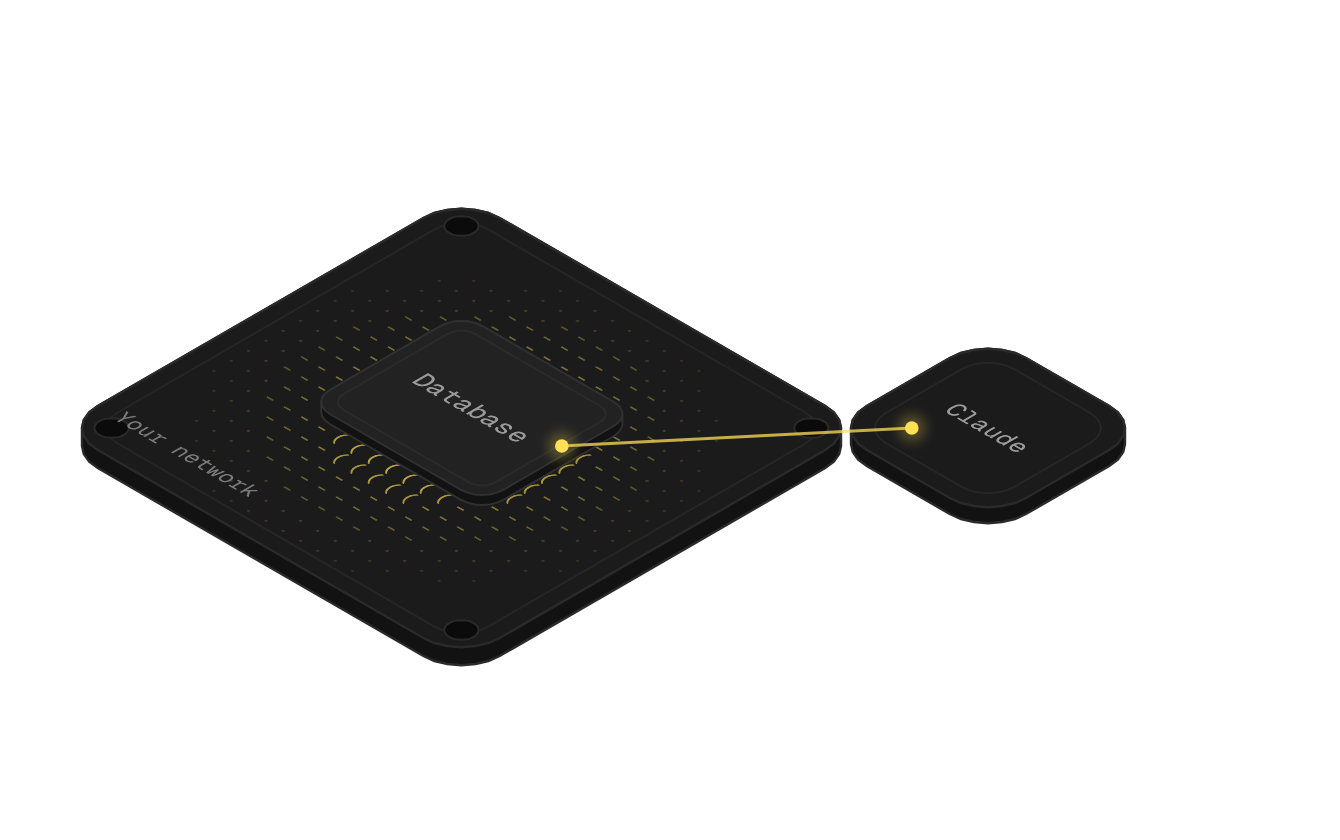
Someone with access to the network installs altbot. It connects out, never in, so the office server stays closed. altspark then reads the database read-only, from the tables you allow.
How to do it:
- Install altbot on a machine that can reach the database.
- Switch on the database tunnel.
- Connect the database in altspark and pick the allowed tables.
Step 4: Sync the job cost and budget tables
Sync the job cost and budget tables on a schedule. Alerts run on synced data.
How to do it:
- Pick the job cost, budget and job tables to sync.
- Set how often they sync: every few minutes, at a set time, or on a cron schedule.
Step 5: Keep the change order and submittal folders current
Change orders, submittals and field exports sit on a network folder or SFTP. altspark keeps those folders current on your schedule, and searches every file by keyword and meaning, with the passage cited.
How to do it:
- Connect the job folders through the same altbot. An admin on that machine grants the folders it may read. SFTP folders work too.
- Set how often they sync.
- Pull submittal and change order deadlines into one table with an extraction across the folder. It previews and shows a cost estimate before it runs.
Example: ask "which jobs are over budget, and what changed?" and get job cost to date against budget, with the change order page that explains it.
Step 6: Link change orders to their jobs
Once the change orders are extracted into a table, altspark links each one to the job it names, and puts any link it had to guess in front of you to confirm.
Step 7: Ask in Claude, and set the alert
Add your project's MCP server to Claude as a custom connector, or to ChatGPT as a custom plugin.
Then turn the question into a Live insight on the synced job cost table. It checks again each time the data syncs, or on a schedule you set. When a job crosses its budget, it emails the project team, or starts a workflow that sends the job and its numbers to the PM. The PM decides what to do about it.
Quick reference checklist
- Step 1: Database location and engine confirmed
- Step 2: Read-only login for job cost and budget
- Step 3: Database connected through altbot
- Step 4: Job cost and budget tables syncing
- Step 5: Change order and submittal folders syncing
- Step 6: Change orders linked to jobs, guesses confirmed
- Step 7: Server added to Claude, overrun Live insight set
Common mistakes to avoid
Mistake 1: Connecting job cost without the change orders
What happens: Claude can say a job is over, but not why. What to do instead: connect the change order folders alongside the database.
Mistake 2: Trusting guessed links
What happens: a change order gets matched to the wrong job because the job names are similar. What to do instead: confirm the links altspark flags as inferred.
Mistake 3: Giving the AI a full-access login
What happens: it can read payroll, and with the wrong permissions, change data. What to do instead: a read-only login with only the tables you need [Microsoft Learn, 2026].
Mistake 4: Expecting instant alerts
What happens: someone assumes an alert fires the moment a cost posts. What to do instead: a Live insight runs on the synced job cost table, so set the sync schedule you need. It checks again each time the data syncs.
Mistake 5: Letting the alert make the decision
What happens: an automated response to an overrun the PM would have handled differently. What to do instead: the alert puts the numbers in front of the PM, and the PM decides.
Key insight: the overrun is rarely a surprise in the data. It's a surprise because nobody looked at the job cost and the change order together in time.
Tools and resources
- Your job costing software's reports: Best for: Estimated vs actual by job; Price: Included; Our take: Use the alerts it already has
- Spreadsheet export: Best for: A few jobs; Price: Free; Our take: Fine until the jobs multiply
- Local MCP server: Best for: One technical user; Price: Free; Our take: Answers on one machine
- altspark: Best for: PMs, owners and the field, with change orders cited; Price: From $299 a month; Our take: Read-only, outbound-only, folders included
Free resources:
- Revizto's 2026 Digital Design and Construction Report [Revizto, 2026]
- Microsoft's database-level roles reference [Microsoft Learn, 2026]
- Anthropic's guide to custom connectors [Anthropic Help Center, 2026]
Further reading:
- How to set up an MCP server for an on-premise database
- 5 alerts worth setting up before you automate anything
What to expect
Once it's connected: any job, any day. "Which jobs are over budget?" comes back from job costing itself, not last Monday's export.
After a few weeks: the PM hears about an overrun at the next scheduled check, with the change order that explains it.
Realistic expectations: answers are as current as your sync schedule, and only as good as the job cost data your team posts. altspark reads the books; it doesn't fix late postings.